
Main Takeaway
You do not need QuickBooks, Xero, or any paid accounting suite to create a professional invoice. A well-structured template in Word, Google Docs, or a spreadsheet, combined with the right content, produces a document that is legally valid, branded, and effective at getting you paid. This guide covers every method available, what each one costs in time and money, and exactly when it makes sense to graduate to dedicated invoicing software.
What Does It Mean to Create an Invoice?
To create an invoice is to produce a formal billing document that itemizes the goods or services you have provided to a client, states the amount owed, and specifies when and how payment should be made. The term “create” is deliberately broad, it encompasses everything from filling in a printed template by hand to generating a document automatically through invoicing software. What matters is not the tool used but the content and structure of the resulting document.
The phrase “create invoice” encompasses a wide range of approaches: some business owners use Microsoft Word, others use Google Sheets, some use free online invoice generators, and others use purpose-built platforms. Each method produces a valid billing document when done correctly. The choice between them comes down to volume, complexity, branding needs, and how much time you are willing to spend on administration.
Key terms to understand before you start:
| Term | What It Means in Practice |
|---|---|
| Invoice Template | A pre-formatted document with placeholder fields for client info, services, amounts, and payment terms, ready to fill in per job. |
| Line Item | A single row describing one service or product: description, quantity, rate, and total. |
| Invoice Number | A unique sequential identifier assigned to every invoice for tracking and reference purposes. |
| Net Terms | The number of days the client has to pay (Net 15, Net 30, etc.) from the invoice date. |
| Subtotal | The sum of all line items before discounts or tax are applied. |
| PDF Export | Converting your invoice from an editable format (Word, Sheets) into a fixed, non-editable PDF for sending to clients. |
| Remittance Details | Your bank account or payment platform information, so the client knows exactly where to send money. |
Creating a strong invoice is closely tied to understanding how to write one correctly in the first place. If you are newer to service billing, our companion guide on how to write an invoice for services covers the required fields and structure in detail, this article focuses specifically on the tools, templates, and methods available for producing that document.
5 Ways to Create an Invoice Without Accounting Software
There is no single “correct” tool for creating an invoice, the right choice depends on your situation. Before walking through the step-by-step creation process, it helps to understand what your options are and where each one is strongest.
📝 Word Processor (Word / Google Docs)
Download or build a template, fill in the fields, and export to PDF. Full control over layout and branding. Best for low-volume freelancers and consultants.
📊 Spreadsheet (Excel / Google Sheets)
Formulas auto-calculate totals, taxes, and subtotals. Easier to maintain a running log of invoices in the same file. Good for itemized or time-tracked billing.
🌐 Free Online Invoice Generator
Browser-based tools (Invoice Ninja, Wave, PayPal Invoicing) let you create and send invoices without installing anything. Most have a free tier with basic features.
📄 PDF Template (Fillable)
A pre-designed PDF with fillable form fields. No word processor is needed, fill in directly and save. Best when design quality matters and volume is very low.
Each of these methods produces a legally valid invoice when the content is correct. The main trade-offs are time (how long it takes to produce each invoice), tracking (how easy it is to know which invoices are paid or outstanding), and automation (whether reminders and recurring invoices require manual effort). For businesses scaling beyond occasional one-off jobs, those trade-offs become the main reason to transition to dedicated invoicing software, a transition we cover in detail later in this guide.
Step-by-Step: Building Your Invoice From Scratch
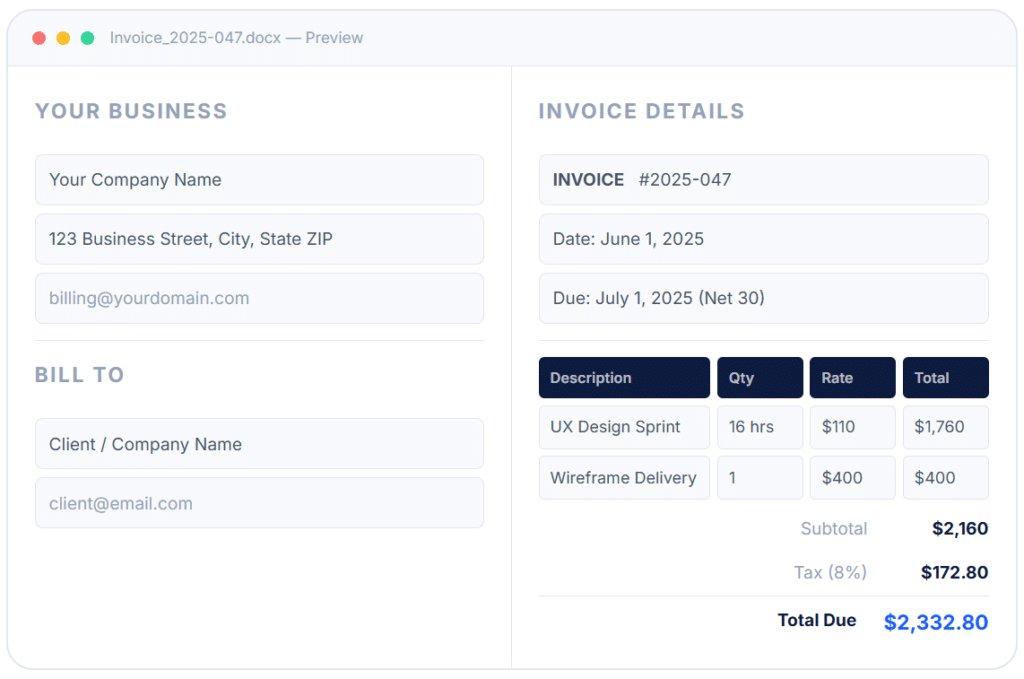
Regardless of which tool you choose, every professional invoice is built from the same foundational elements. Below is the complete sequence, use it as a checklist when creating your template and filling in each invoice.
1. Set Up Your Header and Business Identity
Your invoice should open with your business name, logo (if you have one), address, phone number, and billing email. This establishes the document as yours and gives the client everything they need to contact you with questions. If your business has a tax registration number or VAT ID, include it here, many corporate clients require it before processing payment.
2. Add the Word “INVOICE” and an Invoice Number
This sounds obvious, but many first-time invoice creators omit one or both. The word “INVOICE” in a prominent font makes it immediately clear what type of document this is, especially when the client receives dozens of documents each week. The invoice number is your unique reference: use a sequential system (001, 002…) or a date-based format (2025-001). Never duplicate numbers.💡 Keep a simple log, even a notes app, tracking every number issued and its status.
3. Enter Your Client’s Billing Details
Include the client’s full name (or the company name), billing address, and the email address of the person who actually processes payments, not necessarily your day-to-day contact. If the client has given you a purchase order (PO) number, reference it prominently here. Sending to the wrong person is one of the leading causes of delayed payment in B2B billing, so this step deserves more attention than it typically gets. A well-organized customer management system stores this information per client so you never have to look it up twice.
4. State the Invoice Date and Due Date
The invoice date is today, the day you are issuing the document. The due date is calculated from your payment terms: if your terms are Net 30 and you invoice on June 1, the due date is July 1. State both dates in full (not just “Net 30” alone) so the client knows the exact deadline. Specificity removes any room for misinterpretation.
5. Build Your Line Items with Specific Descriptions
List each service as its own row with a clear, specific description; quantity (hours, sessions, units, days); your rate; and the line total. Specificity is the key differentiator between invoices that get approved quickly and those that generate questions. “Brand strategy consulting, 3 sessions × 2 hours, focused on positioning and messaging framework (6 hrs × $150/hr)” is far more effective than “Consulting, June.” If you incurred reimbursable expenses, add those as separate line items with receipts referenced in the notes.💡 For word processor invoices, use a simple table, four columns: Description, Quantity, Rate, and Total.
6. Calculate Subtotal, Taxes, Discounts, and Total Due
Sum all line items for the subtotal. Apply any applicable taxes (check your local requirements, not all services are taxable in every jurisdiction). If you offered a discount, show it as a separate line below the subtotal. Present the math clearly: subtotal → discount → tax → total. In a spreadsheet, formulas handle this automatically and eliminate arithmetic errors. In a word processor, double-check every calculation before saving.
7. Specify Payment Terms and Accepted Methods
State your terms (“Payment due within 30 days, by July 1, 2025”) and list every payment method you accept: bank transfer (include your account details), credit card, PayPal, a Stripe link, or check. The more payment options you offer, the fewer barriers between the client and paying you. If your terms include a late fee, state it clearly here: “Invoices unpaid after the due date are subject to a 1.5% monthly charge.” For clients on structured payment plans, our guide to installment billing explains how to structure multi-payment invoices across a project lifecycle.
8. Add a Notes Section, Then Export to PDF
Use the notes area for a brief thank-you, special payment instructions, a payment portal link, or any reference codes the client needs. Keep it concise. Once the document is complete, export it as a PDF, never send an editable Word or Sheets file. PDFs preserve your formatting, prevent accidental edits, and look consistent across every device the client might open them on. Every major word processor has “Export as PDF” or “Print → Save as PDF” built in.💡
Rename your PDF clearly: “Invoice_2025-047_ClientName.pdf”, easier to find in both your inbox and theirs.
Save Your Template Once, Reuse It Forever: Once your invoice is correctly structured and formatted, save it as a template, a “master” version with placeholder fields. Duplicate it for each new invoice, fill in the client-specific details, update the invoice number and dates, and export. You should never be building an invoice from a blank page after the first time.
Real-World Use Cases: Who Creates Invoices Without Software?
Manual and template-based invoice creation is far more common than most business guides acknowledge. These are the most typical situations where it makes complete sense and how the approach plays out in practice.
🎨 Freelance Creatives
A freelance illustrator billing three to five clients per month has no need for accounting software. A well-crafted Google Docs template, duplicated and updated per project, handles every invoice in under five minutes. PDF export and email delivery via Gmail complete the workflow at zero cost.
🔧 Tradespeople and Contractors
A plumber or electrician completing mostly one-off jobs often invoices immediately on-site. A fillable PDF on a tablet, pre-loaded with rates and labor categories, lets them produce a professional invoice before leaving the client’s property, accept it across a credit card terminal, and email it in minutes.
💼 Consultants Starting Out
An independent management consultant with two or three retainer clients can manage comfortably with a Google Sheets invoice tracker paired with a Docs template. The Sheets file tracks invoice numbers, amounts, sent dates, and paid dates, a lightweight AR dashboard without any software cost.
📸 Event and Session-Based Businesses
Photographers, tutors, and personal trainers often bill per session or per event. A pre-built spreadsheet template that auto-calculates session fees across a month handles the math; a single PDF export delivers the invoice after each billing period closes. Simple, repeatable, and effective.
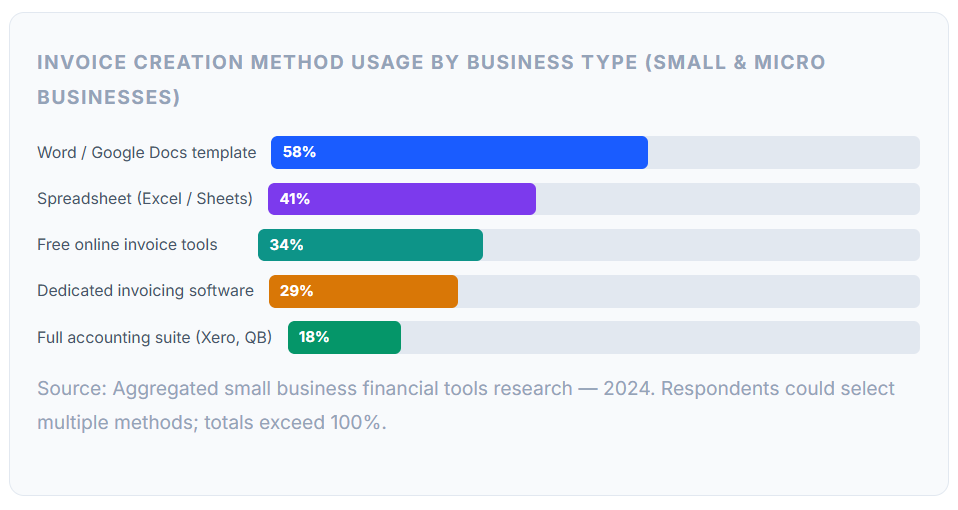
The data reflects what many experienced operators already know from practice: the majority of small and micro businesses manage invoicing without dedicated accounting software, and a well-structured manual process is entirely sufficient at low-to-moderate billing volumes. The transition to software tends to happen organically, when the manual process stops saving time and starts costing it.
Key Benefits of Getting the Invoice Format Right
Creating a professional invoice, regardless of the tool used, delivers benefits that compound across every billing cycle. These are the ones that matter most:
Faster Payment Approval
A clearly structured invoice moves through a client’s approval process faster because there is nothing to question. When the service descriptions are specific, the math is correct, all required reference numbers are present, and the payment instructions are explicit, accounts-payable teams have everything they need to authorize and execute payment. Ambiguity is what creates delay.
Fewer Disputes and Revision Requests
Vague invoices generate questions. Questions delay payment. Detailed, well-organized invoices address those questions proactively, reducing back-and-forth and the awkward conversations that come with it. This is especially important in the early stages of a client relationship, when trust is still being established.
Stronger Perceived Professionalism
Your invoice is often the last touchpoint the client has with your work before the relationship resets to the next project. A clean, branded document reinforces the quality of the work itself. Conversely, a hastily formatted or error-prone invoice undercuts the impression your work made, even if the work itself was excellent.
Cleaner Financial Records
Every invoice you create is a financial record. A consistent format makes bookkeeping simpler, tax filing faster, and audit preparation far less painful. When you can trace every transaction back to a specific numbered invoice with a complete description and client reference, your financial history becomes a searchable, organized archive rather than a collection of miscellaneous documents.
Growing Your Client Base? As your client list grows, manually recreating billing details for each invoice becomes time-consuming and error-prone. Centralizing client information, billing contacts, payment preferences, and invoice history in a customer management system ensures you always have accurate details on hand without searching through old emails.
Common Pitfalls When Creating Invoices Manually
Manual invoice creation introduces risks that dedicated software eliminates by design. These are the most frequent and most costly mistakes to watch for:
1 . Arithmetic Errors in Calculations
Manually calculated totals are vulnerable to simple math mistakes, especially when tax, discounts, and multiple line items are involved. A formula-driven spreadsheet eliminates this risk entirely. If you use a word processor, always verify every calculation independently before exporting to PDF.
2. Duplicate or Skipped Invoice Numbers
Without a system to track numbers, it is easy to accidentally reuse an invoice number or leave a gap in the sequence. Duplicate numbers create confusion in accounting records and can complicate tax reporting. Keep a simple log, a spreadsheet row per invoice, as your single source of truth for numbering.
3. Inconsistent Formatting Across Invoices
If you rebuild your invoice from scratch each time (or use slightly different templates), the formatting will gradually diverge. Clients notice inconsistency even if they cannot articulate why, it signals disorganization. Save a locked master template and duplicate it for every new invoice.
4. No Tracking System for Payments
Creating the invoice is only half the process. Without a system for tracking which invoices have been paid, partially paid, or are overdue, you will inevitably lose track of outstanding balances. Even a basic spreadsheet log, invoice number, client, amount, sent date, and paid date is sufficient to keep accounts receivable under control at low volume.
5. Sending Editable Files Instead of PDFs
Sending a Word document or Sheets file as your invoice is an unnecessary risk. Editable files can be accidentally modified, may not render correctly on the client’s system, and can display formatting inconsistencies across different versions of the software. Always export to PDF before sending.
6. Missing or Incomplete Payment Instructions
An invoice that tells the client how much they owe but not how to pay it creates an avoidable friction point. Every invoice should include complete payment instructions, bank account details for transfers, a payment link for cards, or a check payable-to line if you accept checks. The easier you make it to pay, the faster you get paid.
Watch for Tax Compliance Gaps: One of the most common oversights in manual invoicing is inconsistent or incorrect tax handling, either applying tax when it is not required, failing to apply it when it is, or using the wrong rate. If you are uncertain about your tax obligations, consult a local accountant before you invoice the next client. Getting this wrong creates liability that is far more costly to fix retroactively.
Invoice Creation Methods: Side-by-Side Comparison
Choosing between methods comes down to your billing volume, technical comfort, and how much time you want to spend on administration. This table maps each option across the dimensions that matter most to a growing service business.
| Method | Cost | Time Per Invoice | Auto Calculations | Payment Tracking | Best For |
|---|---|---|---|---|---|
| Word / Google Docs | Free | 10–20 min | Manual | None built-in | 1–5 clients, creative / consulting |
| Excel / Google Sheets | Free | 5–15 min | Formula-based | Manual log | Itemized billing, time tracking |
| Free Online Generator | Free / freemium | 5–10 min | Auto | Basic | Occasional invoicing, online payment |
| Fillable PDF | Free | 5–10 min | Manual | None built-in | Very low volume, premium design |
| Dedicated Invoicing Software | Paid (low) | 2–5 min | Auto | Full AR dashboard | 6+ clients, recurring billing, scale |
| Full Accounting Suite | Paid (higher) | 2–5 min | Auto | Full integration | Complex financials, payroll, inventory |
The table makes the trade-off clear: the free methods require more manual effort and offer no built-in tracking, while software automates both creation and follow-up at a relatively modest cost. For most solo service providers and small teams, the crossover point, where software saves more time than it costs, comes around five to seven active billing relationships or when recurring billing on a set schedule becomes part of the business model.
When and How to Upgrade to Invoicing Software
There is no shame in starting with a Word template, it is how the vast majority of independent service providers begin, and it works well within its limitations. The goal is to recognize when you have outgrown those limitations and make the transition before the manual process starts costing more than it saves.
Signs You Have Outgrown Manual Invoicing
You are spending more than two hours per month on invoice creation, tracking, and follow-up. You’ve missed a payment deadline or sent a follow-up email about an invoice you had accidentally marked as paid. You have multiple clients on retainer, and you are sending the same invoice manually every month. You have lost track of whether a payment came in. Any one of these is a signal. Multiple signals mean the transition is overdue.
What to Look for in an Invoicing Platform
The right platform for a service business should do at minimum: create and send branded invoices from templates, auto-number invoices sequentially, accept online payment via ACH and credit card, send automated reminders for overdue invoices, and provide a clear dashboard showing what is current, upcoming, due, and overdue.
ReliaBills is built specifically for this workflow. Beyond the core invoicing features, it handles recurring billing schedules for retainer clients and installment billing for large projects, two billing models that are genuinely cumbersome to manage in a spreadsheet but trivial to automate on the right platform.
How to Make the Transition Without Losing Your Invoicing History
Before migrating to any new platform, export a complete record of your existing invoices, numbers issued, clients, amounts, and payment status. Most invoicing platforms have an import function or allow you to enter opening balances. Start your new invoice numbering where your manual sequence left off. Enter all existing clients and their billing details before sending your first software-generated invoice. The whole process typically takes less than an afternoon for businesses that have been invoicing for under two years.
Frequently Asked Questions
The most common questions people ask when learning how to create an invoice without accounting software:
1. What is the easiest way to create an invoice without accounting software?
For most people starting out, a Google Docs or Microsoft Word template is the easiest route. Build your template once with your business details, a table for line items, and your payment terms, then duplicate it for each new invoice, update the client-specific information, and export as a PDF. The entire process takes less than five minutes once the template is set up correctly.
2. Is an invoice created in Word or Excel legally valid?
Yes. An invoice does not need to be generated by any particular software to be legally valid. What matters is the content: both parties’ details, a description of services rendered, the amount charged, the payment due date, and applicable taxes. A correctly structured Word document or spreadsheet invoice is fully enforceable and perfectly acceptable for tax purposes.
3. How do I number invoices if I’m creating them manually?
Use a simple sequential system: start at 001 and increment by one with every new invoice. Adding a year prefix (2025-001) makes records easier to sort across tax years. Keep a log, even a single spreadsheet tab, that maps each invoice number to the client name, amount, issue date, and payment status. Never reuse a number, and never skip one without a note explaining why.
4. What format should I send an invoice in?
Always send invoices as PDF files. PDFs preserve your formatting exactly as designed, cannot be accidentally edited by the recipient, display consistently across every device and operating system, and are the universally accepted format for business billing documents. Every word processor and spreadsheet application includes a built-in option to export or print to PDF.
5. Should I include tax in my invoice?
It depends on your jurisdiction, your registration status, and the nature of your services. In many countries, businesses below a certain annual revenue threshold are not required to collect sales tax, VAT, or GST. Above the threshold, the obligation typically kicks in automatically. Some service categories are also exempt regardless of turnover. Consult a local accountant or your tax authority’s official guidance before adding tax to your invoices, the consequences of getting this wrong can be significant in either direction.
Recent Articles:
- How to Automate Invoice Generation: A Guide for Non-Technical Owners
- Invoice Numbering Best Practices: How to Stay Organized